The OfferingTree page builder is flexible and includes many "blocks" which allow you to create amazing web pages. One of the blocks called the File block which allows you to embed a file on your site with a preview. For instance, let's say you want to add a PDF file to your web page. You can use the file block to show the PDF file right on your website!
To use the file block, click on the plus button on the page you are editing and select "File". Then select the edit pencil and this brings you to the file settings screen as shown below.
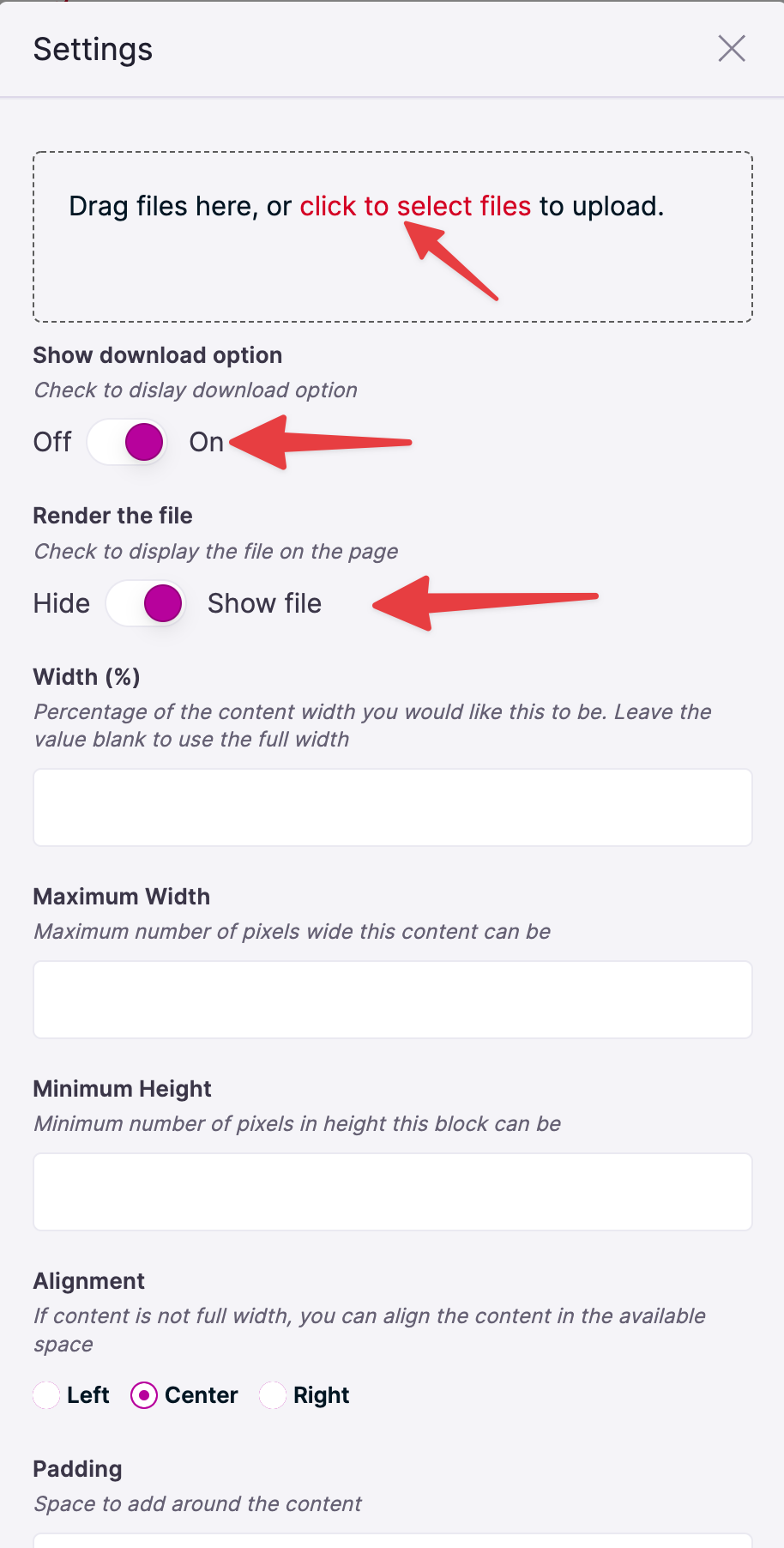
You can drag files into the first rectangle to upload the file you want to show or alternatively click on the link to select a file on your computer. The next option is to show a download link right below the file preview. If you do not want to show this, simply set the switch to off. The third option is to show or hide the file preview. Showing the file preview will make the file visible on the web page. Hiding it (along with showing the download link) will hide the file preview but show a download link. Handy if you simply want to provide a file download link. The rest of the options are the standard spacing and alignment options. Save your page and see how it looks on your website!
Comments
0 comments
Article is closed for comments.